
Adding Your Name and Title to Your Image
To protect your Images, you should always add metadata to your image files. This metadata should include your name, the title of the image, and any copyright notice. Many cameras today offer the option to include your copyright notice when you capture an image. You need to look in your camera's user manual to see if that is an option for your camera and how to set that up.
After capture, there are many ways to add this information. Some of the most common are listed below, but this is not an extensive list. Do check your software user guide to see how and where you can add and edit metadata.
Photoshop
With your image open in Photoshop, click on File > File Info…
Enter your Image Title (1) and the photographer’s name (2)
Click OK
Save your image.

Lightroom Classic
(For Lightroom (Creative Cloud - Web - Mobile) see below)
Ensuring that you have metadata included with your image is a little trickier in Adobe Lightroom. Lightroom does not directly edit your image files so when you make changes to the metadata, those changes are only made in the Lightroom Catalog and not the original image file. You have to add the changes to the original file in a separate step.
Add Metadata in the Lightroom Classic Catalog
In the Library Module, highlight the image to which you’d like to add metadata.
In the Metadata panel, select IPTC in the dropdown menu.
Add the image title (1) to Title in the Status section.
Add the photographer’s name (2) to Creator in the Contact section.
Move Lightroom Metadata to the Original Image File
Once you add the metadata to the Lightroom Catalog, you can move that information to the original image file.
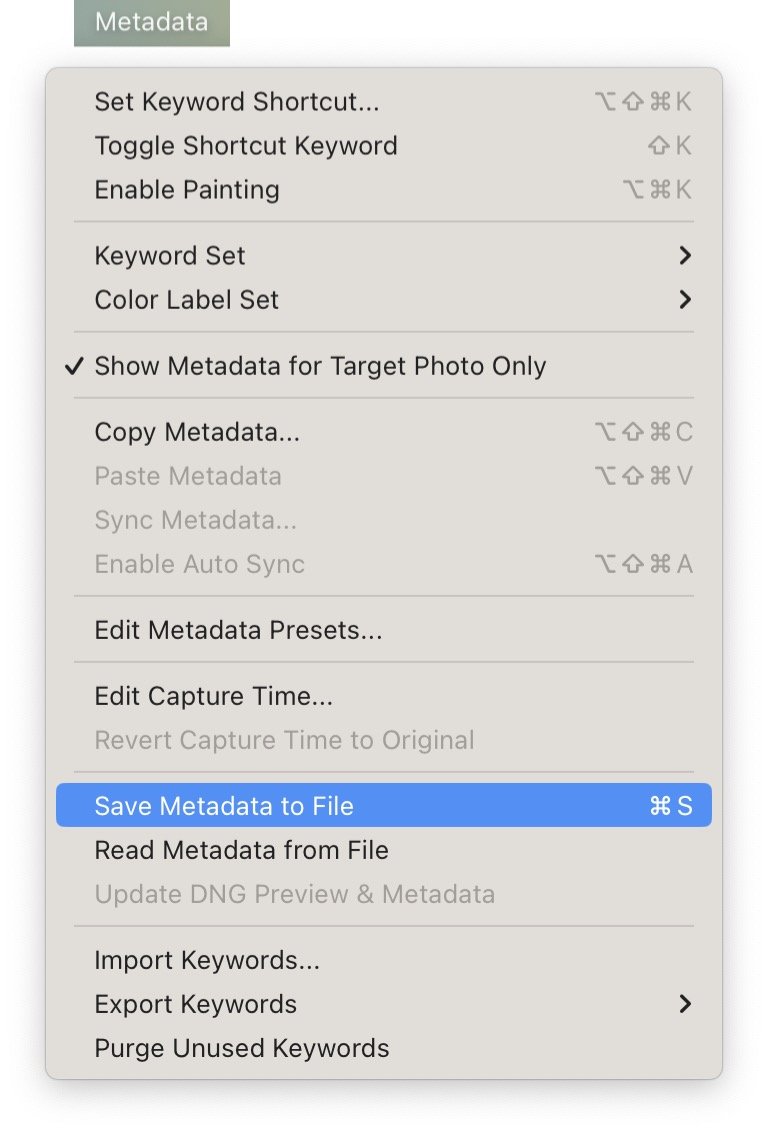
Click on Metadata.
Select Save Metadata to File.
This copies all the metadata for that image from the Lightroom Catalog and adds it to the original image file.
You would need to do this if you were going to enter the original file into the contest.
Another option is to create a new image file for submission by using Lightroom Export.
Using Export to Create an Image File to Submit to the Contest
Ensure that the image file you submit has all the appropriate metadata in the Lightroom Catalog.
Select File > Export…
Make all the appropriate settings for exporting your file. In the Metadata section, be sure to check Include: All Metadata.

Lightoom (Creative Cloud - Web - Mobile)
Adobe Lightroom is a totally different program from Adobe Lightroom Classic. Lightroom is based on Adobe's Creative Cloud environment and can be accessed on a Windows or Mac desktop, an iPhone, or an Android device. How to add metadata depends upon which access method you use.
Creative Cloud - Via Desktop or Laptop Computer
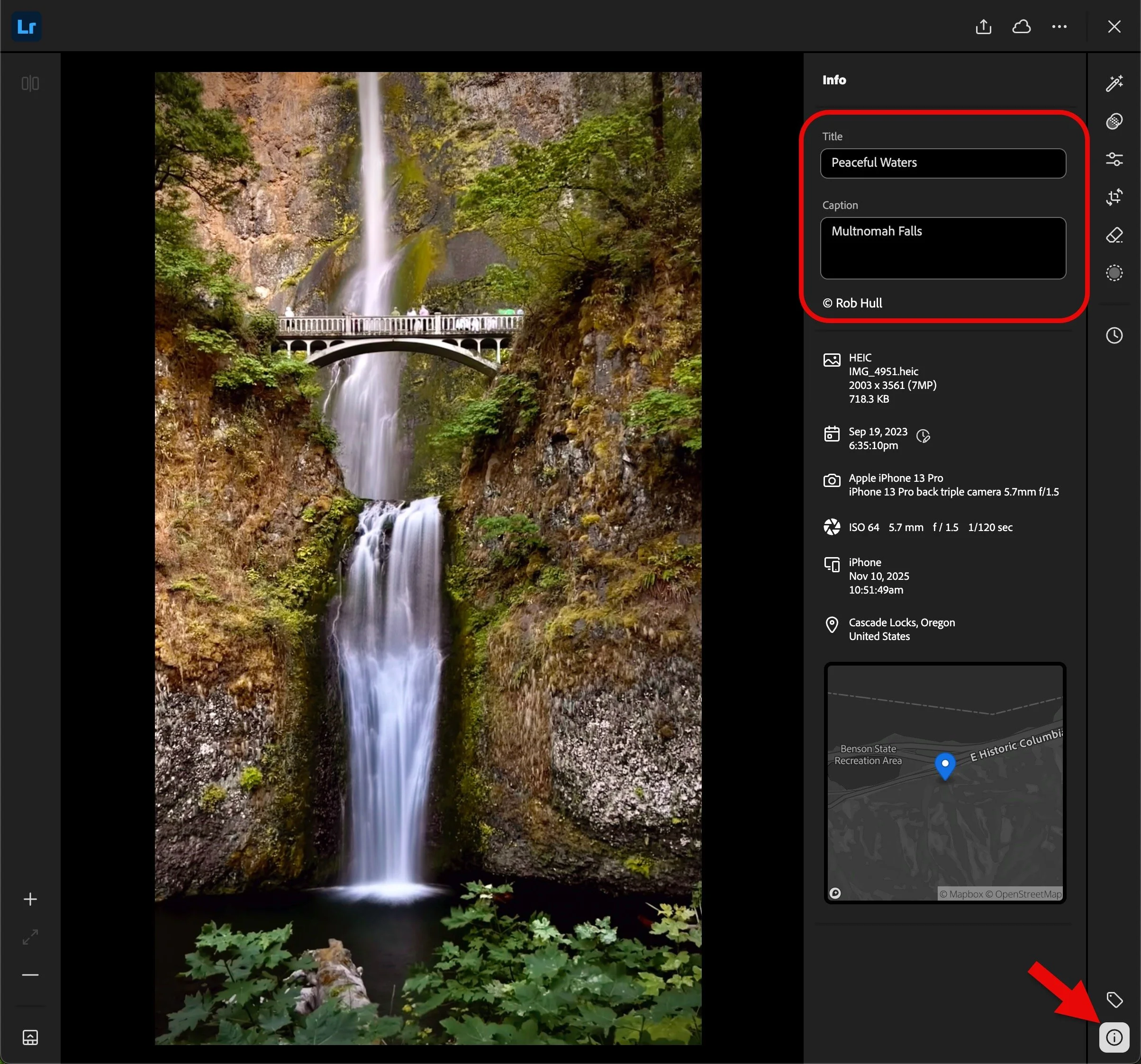
Open the image.
Click on the Information Icon “I”
Enter the Image Title and Caption.
There is no way to edit the Copyright Information from the desktop.
Creative Cloud from iPhone
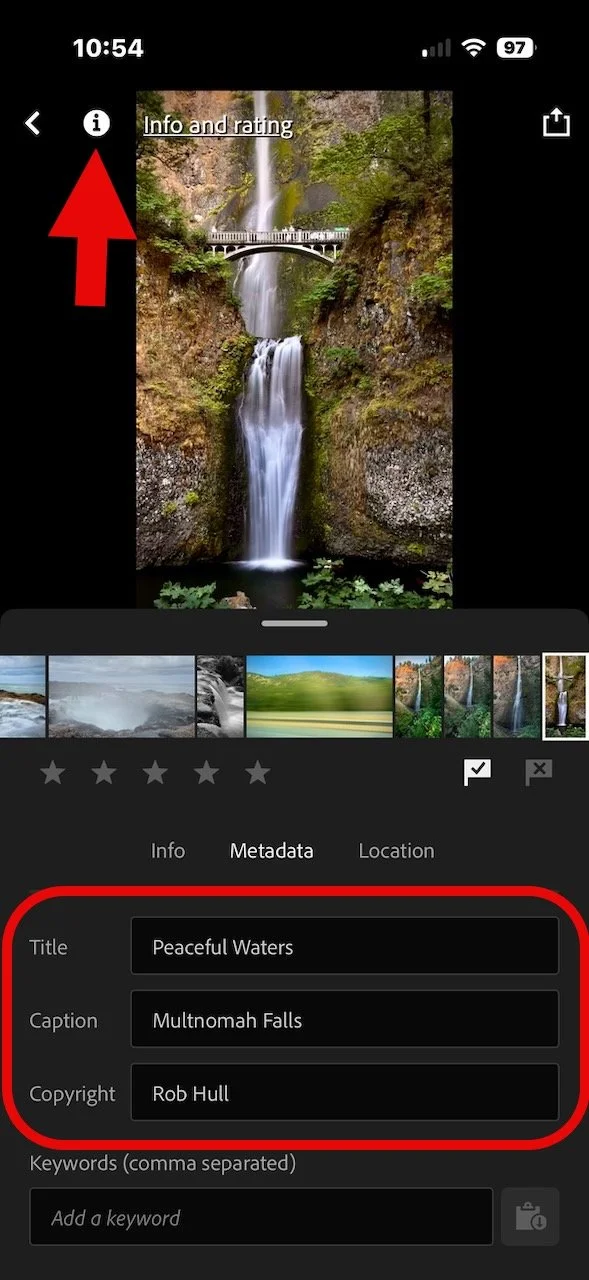
From your iPhone Lightroom app, open the image.
Click on the Information icon (i)
Select the Metadata tab
Enter the Title, Caption, and Copyright information.
Apple Photos
The Photos application on Apple devices is quite limited in what you can do with metadata. You can still add the image title, although there is no filed to add the photographers name. In the case of images from Apple Photos, simply enter that information on a single line.
Double Click on the image
Click on the Information icon
In the Info Panel, add the image title and the photographer’s name in the Add a Title field.
